Turn TTD Into Money You Can Actually Use
For many Trinidadians, the problem is not that we do not have money. The problem is gaining meaningful international access to the money we already have.
You may have TTD sitting in a local bank account, but still struggle to pay for software, online subscriptions, advertising, travel, accommodation, international suppliers or everyday expenses abroad. Even when your Credit Card works internationally, spending limits and foreign-currency restrictions can determine how much of your own money you are allowed to use.
This affects far more than online shopping. Business owners need foreign currency to pay for SaaS platforms, cloud services, equipment and international vendors. Students studying overseas need dependable access to funds from home. Travellers need to pay for flights, hotels and transportation. Digital nomads and Trinidadians living abroad may earn or receive money in TTD but have no convenient way to move it into the financial accounts they use every day.
Wam offers a new route.
You can fund your Wam account with TTD and convert that money into USD or other supported currencies at the live exchange rate displayed in the app. Before confirming the conversion, Wam shows the applicable rate and the amount you will receive, so you can review the transaction before proceeding.
Once the money has been converted, you are not limited to looking at a foreign-currency balance inside Wam. You can move the value somewhere it becomes practically useful.
If you already have Wise, a US bank account or compatible US brokerage details, you can add that destination to Wam and send the converted USD through ACH or wire. I have connected Wise, Bank of America and my Charles Schwab funding route to my Wam account. Charles Schwab appears inside Wam as JPMorgan Chase because that is the underlying receiving bank used for the transfer instructions.
But what if you do not have Wise, a US bank account, an overseas brokerage account or even a Payoneer account?
That is where Sendana becomes important.
You can create and verify a Sendana account, copy your Sendana Stellar wallet address and send USDC directly from Wam to Sendana over the Stellar network. Once the value arrives, Sendana gives you access to a virtual Visa card that can be used for eligible international purchases and added to Apple Pay or Google Pay where supported. That Virtual card can be used anywhere that Visa is accepted worldwide. Sendana will be rolling out a physical debit card soon.
The complete route can be as straightforward as:
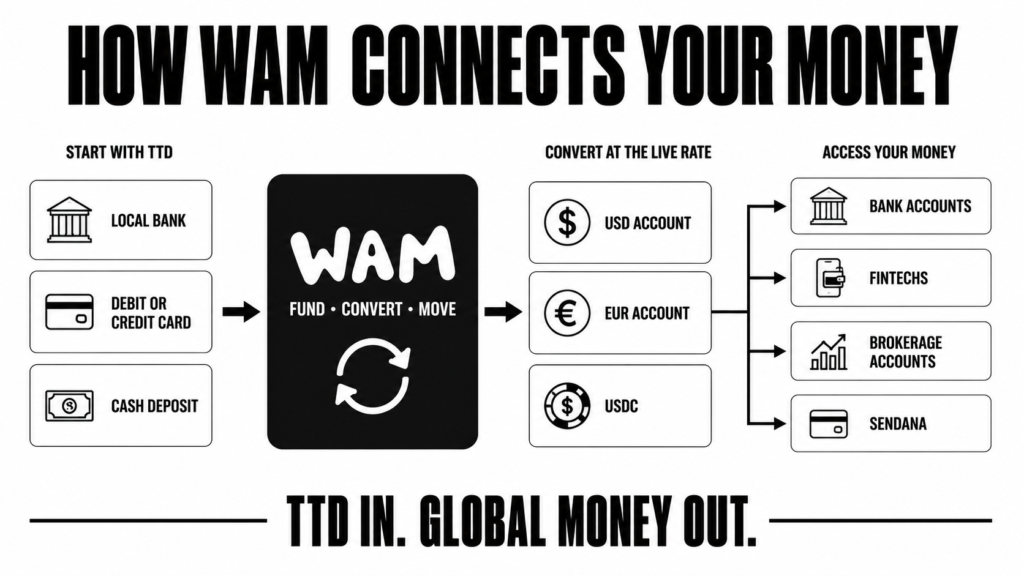
TTD in Trinidad → Wam → USD → USDC over Stellar → Sendana → Virtual card
Wam’s own virtual card was not yet available when this guide was prepared, so Sendana currently provides the most accessible spending route for someone who does not already have foreign financial accounts. When Wam launches its card, customers may eventually be able to spend directly from Wam without this additional step. But you do not necessarily have to wait for that launch to begin accessing your money.
This guide will show you how to fund Wam, convert your TTD, add a compatible foreign account and send the resulting value somewhere you can actually use it. It will also show you how to use Sendana when you have no existing international account.
The real promise is not simply the ability to “buy USD.” It is the ability to take money that would otherwise remain restricted inside Trinidad and Tobago’s financial system and turn it into usable international purchasing power—for your business, education, travel, subscriptions, shopping or life abroad.
What Is Wam?
Wam is a Trinidad and Tobago financial-technology company building payment and money-management services for the Caribbean. (See –> Central Bank Registers WAMNOW Technologies to Issue Electronic Money)
The company operates as a licensed Electronic Money Institution under the supervision of the Central Bank of Trinidad and Tobago. This means Wam is not simply an unregulated app offering access to foreign currency. It operates within Trinidad and Tobago’s regulated electronic-money framework, with customer funds held in segregated, supervised accounts.
Through the Wam app, customers can fund a wallet with TTD, hold supported currency balances, convert between currencies and move money through both traditional banking and digital payment rails.
Depending on the currency and destination, Wam provides access to services such as:
- TTD wallet funding and withdrawals;
- USD account and routing details;
- EUR account details, including an IBAN and BIC;
- ACH and wire transfers;
- SEPA payments;
- USDC and USDT transactions;
- Transfers across supported blockchain networks;
- Wam-to-Wam payments;
- Local bank, card, cash and agent funding options.
For the purpose of this guide, Wam’s most important feature is its ability to connect locally funded TTD with internationally usable financial services.
You can fund Wam in Trinidad dollars, convert that value into USD or another supported currency at the live rate shown in the app, and then decide where the money should go. That could be an account with Wise, Bank of America, Charles Schwab or another compatible financial institution. It could also be sent as USDC to a supported external wallet such as Sendana.
Where Bridge Fits Into the Process
Wam and Sendana use infrastructure from Bridge to help connect traditional banking, stablecoins, digital wallets and international card spending.
The simplest way to understand Bridge is as part of the financial plumbing underneath these apps. It helps platforms move value between different forms and payment systems—for example:
Bank money → digital dollars → blockchain transfer → digital wallet → card spending
The customer does not need to register for Bridge or understand its technical infrastructure. You interact with Wam and Sendana, while Bridge helps provide some of the underlying connections between bank accounts, stablecoins, wallets and cards.
Wam remains the important local entry point. It provides the Trinidad-facing account, accepts supported TTD funding methods and facilitates the conversion into foreign value. Sendana can then provide a virtual-card spending route for customers who do not already have Wise or an overseas bank account.
What Is Available Now?
Wam is preparing a larger launch event where the company is expected to introduce itself more fully and explain additional products and features.
Some advertised functionality—including Wam’s own virtual card—was not yet available when this guide was prepared. Features may also appear differently depending on the customer’s verification level and the version of the app.
However, the core functions covered in this guide are already operational. These include:
- Funding a Wam wallet with TTD;
- Converting TTD into USD;
- Accessing USD account details;
- Adding compatible US and European bank accounts;
- Sending USD through ACH or wire;
- Buying and sending supported stablecoins;
- Sending USDC to Sendana over Stellar;
- Converting or sending supported foreign currencies.
This distinction matters. Wam is still rolling out parts of its broader product, but customers do not have to wait for every announced feature to begin getting meaningful value from the platform today.
What You Need Before Starting
This guide will show you how to fund Wam, convert your TTD and access the resulting USD or euros. However, it does not cover how to register for Wam or Sendana.
Before beginning, make sure you have:
- A registered and verified Wam account (make sure you are Level 3 Verified);
- Make sure that you have created the USD account inside of WAM, if you have any issues with signing up, contact WAM support.
- Access to the TTD you intend to place in Wam;
- A registered and verified Sendana account if you need virtual-card access;
- Or compatible account details from Wise, a US bank, brokerage or European bank;
- Access to the phone number and email address connected to your accounts.
You do not need every account mentioned in this guide.
If you already have Wise, a US bank account, Charles Schwab or a compatible European bank account, you can add those account details to Wam and send the converted money there. If you don’t have a Charles Schwab account and you want one, check out the guide here –> Creating Your Charles Schwab Account.
If you want to create a Wise account from the Caribbean, check out my guide here –> Wise Guide.
If you do not have an overseas bank, fintech or brokerage account, you can use Sendana. Sendana provides a Stellar wallet for receiving USDC and a virtual card for eligible international spending.
Sendana is the fastest digital wallet you can open, get a virtual debit card and start using your money.
Complete Registration and Verification First
Before following this guide, create your Wam account and complete Wam’s identity-verification process. If you plan to use the Sendana route, create and verify your Sendana account as well.
Registration and verification are your responsibility and are not covered in this guide. Follow the instructions provided by each platform and ensure both accounts are fully activated before attempting to fund, convert or transfer money.
If Wam Registration Fails in the App
Some users have reported receiving a “Failed to initiate MFA challenge” message when requesting their email or WhatsApp verification code through the Wam app.
If you encounter this issue, try completing the registration through Wam’s website using:
- A desktop or laptop browser; or
- Your phone’s mobile browser instead of the Wam app.
Users have reported that switching to a browser allowed them to continue when registration failed inside the app. This is a troubleshooting option, not a guaranteed fix. If the problem continues, contact Wam’s official support team for assistance.
Registration requirements and approval times can vary, although the initial setup may only take a few minutes. Do not begin the steps in this guide until the required verification has been completed and your accounts are ready to use.
Have Your TTD Available
This guide will explain how to fund Wam using the different options available inside the app. Depending on your circumstances, you may be able to use:
- An eligible local bank card;
- A same-bank transfer;
- A cash deposit at a participating bank branch;
- A Wam agent;
- Money received from another Wam user.
You do not need to fund Wam before starting the guide. We will cover the funding process step by step.
However, you should know where the TTD will be coming from and have access to the relevant card, bank account or cash before beginning.
Different funding methods have different speeds, requirements and potential delays. The best method will depend on your bank, card and personal circumstances.
Decide Where the Money Will Go
Before converting a large amount, decide how you want to access the foreign value.
If you plan to send USD to Wise, a US bank or Charles Schwab, have the account details supplied by that platform available.
For a US destination, Wam may request:
- Beneficiary name;
- Bank name;
- Account number;
- Nine-digit routing number;
- Account type.
For a European destination, Wam may request:
- Beneficiary information;
- Bank name;
- Local account number, where applicable;
- IBAN;
- BIC/SWIFT.
If you plan to use Sendana, have your verified Sendana account ready so you can copy its USDC Stellar wallet address when needed.
Never guess banking or wallet information. Copy the details directly from the destination platform.
Start With a Small Test
Your first transfer to a new bank account, brokerage or digital wallet should be for a small amount.
This is particularly important when:
- Adding a bank account for the first time;
- Sending to a brokerage account;
- Using ACH or wire for the first time;
- Sending USDC to Sendana;
- Using the Stellar network;
- Funding Wam with a new card or bank-transfer method.
Confirm that the money reaches the correct destination before sending a larger amount.
How Long Can the Process Take?
Once your Wam and Sendana accounts are verified, it may be possible to fund Wam, convert the TTD and gain access to the money in under 30 minutes.
That is a best-case outcome, not a guaranteed completion time.
The total time can be affected by:
- Your chosen funding method;
- Your bank or card issuer;
- 3D Secure authentication;
- Bank and agent operating hours;
- Same-bank transfer matching;
- Cash-deposit processing;
- ACH or wire processing;
- Compliance checks;
- Larger-transaction reviews;
- Receiving-platform processing.
This guide will help you select the most appropriate funding and withdrawal routes, but the speed will ultimately depend on the accounts and services available to you.
Understand Wam’s Limits Before Funding
Before depositing or converting money, open your Wam Account Center and check the limits assigned to your specific account. Wam’s limits differ significantly between personal and business accounts.
Personal Level 3 Account Limits
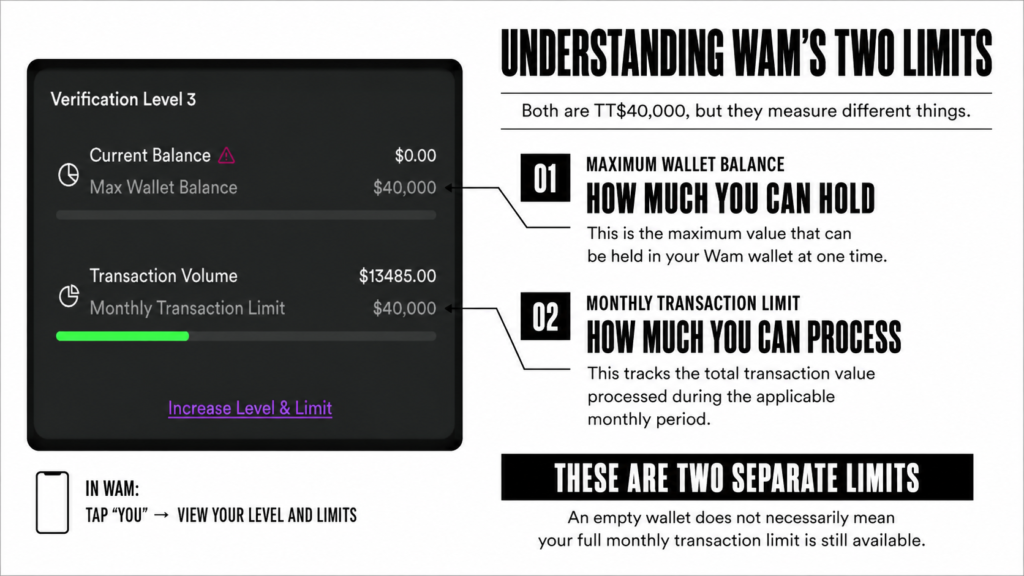
A verified Level 3 personal account currently displays two separate TT$40,000 limits:
- Maximum wallet balance: TT$40,000
- Monthly transaction limit: TT$40,000
Although the figures are identical, they measure two different things.
Maximum Wallet Balance
The maximum wallet balance controls how much value you can hold in Wam at one time.
For example, if your personal wallet already contains TT$30,000, you would have approximately TT$10,000 of remaining wallet capacity:
TT$40,000 − TT$30,000 = TT$10,000
Moving money out of Wam can create room in the wallet again. However, it does not necessarily restore the transaction activity already counted against your monthly limit.
Monthly Transaction Limit
The monthly transaction limit controls how much transaction activity can be processed through the account during the applicable monthly period.
Wam tracks this volume in TTD-equivalent value. Transactions involving USD, euros or other supported assets can therefore count against the limit according to their TTD value.
For example, if your personal Account Center shows TT$13,485 in transaction volume, your displayed remaining monthly capacity would be:
TT$40,000 − TT$13,485 = TT$26,515
This is separate from your current wallet balance. Your wallet could be empty while part of your monthly transaction limit has already been used.
Always check both figures before attempting a large deposit or conversion:
- Current wallet balance;
- Maximum wallet balance;
- Transaction volume;
- Monthly transaction limit.
When Does the Monthly Limit Reset?
The Account Center displays your current transaction volume and monthly limit. However, you should check the current Wam app or confirm with Wam when your account’s specific monthly period resets.
Do not assume that the limit resets based on the date of your last transaction.
The Limit Is Not a Guaranteed USD or EUR Allowance
The TT$40,000 personal limit doesn’t represent a fixed allocation of USD or euros.
These figures describe how much transaction activity the account can process in TTD-equivalent value. The amount of foreign currency received depends on:
- Wam’s live exchange rate;
- The direction of the conversion;
- Any margin or spread included in the displayed rate;
- Any separately displayed fee;
- The amount being converted;
- Applicable account and compliance requirements.
The approximate calculation for USD is:
TTD amount ÷ Wam’s live TTD-to-USD rate = approximate USD before any separately displayed fee
For example:
TT$40,000 ÷ live TTD-to-USD rate = approximate USD available to a personal user
The second calculation is only an illustration. It should not be interpreted as a guarantee that the entire business limit can be converted in one transaction or without additional reviews.
Wam’s rates fluctuate, so the amount of USD or euros received can change. Always review the live quote, applicable fees and final foreign-currency amount displayed inside Wam before confirming.
Choose How You Will Fund Wam
Before you can convert TTD into USD or euros, you must first place TTD into your Wam wallet.
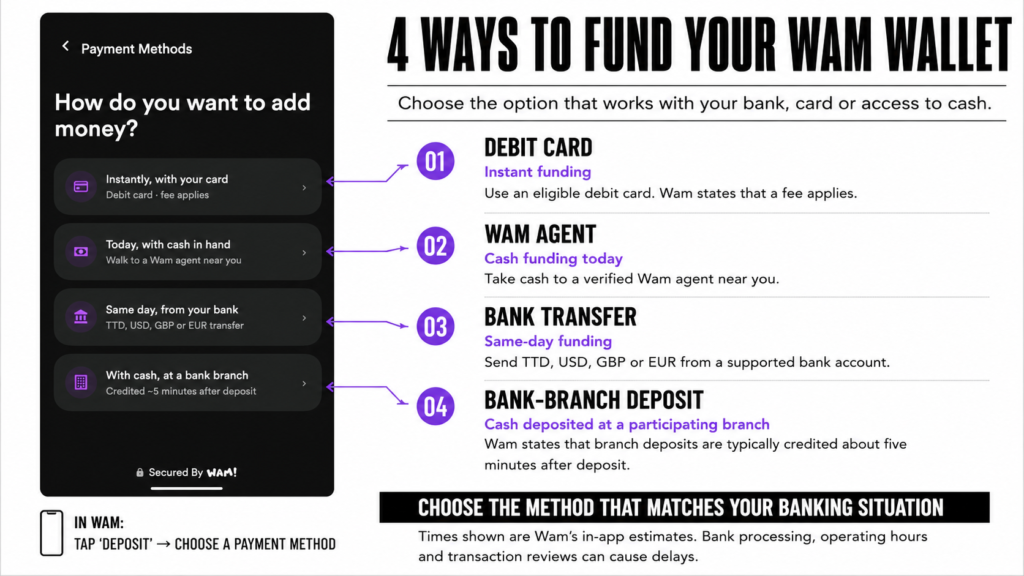
Wam provides several funding methods, but they do not all work at the same speed or in the same way. The best option will depend on your bank, card, access to cash and how quickly you need the money.
| Funding method | Best for | Important consideration |
|---|---|---|
| Existing bank card | Convenience and fast funding | Depends on card issuer and 3D Secure |
| Same-bank transfer | Customers with supported online banking | The sending and receiving banks should match |
| Bank-branch cash deposit | Customers funding with cash | Personal reference code is required |
| Wam agent | In-person deposits and assistance | Availability depends on the agent network |
| Wam-to-Wam transfer | Receiving money from another Wam user | Both parties need Wam accounts |
*I’ve tried to upload funds using my FCB debit Card, and it fails due to the 3D Secure on FCB’s end. So when using FCB, I use the bank transfer option to deposit funds to my WAM account.
This section begins with the two methods most people are likely to try first: an existing bank card or a same-bank transfer.
Fund Wam With an Existing Bank Card
Wam allows customers to add an eligible existing bank card and use it to fund their TTD wallet.
The card displayed under Your Cards is a card you already have from your bank. It is being stored as a Wam funding method.
It is not Wam’s forthcoming virtual card.
This distinction is important because Wam’s own virtual card was not yet available when this guide was prepared. Adding your Republic, FCB or another eligible card to Wam does not create a new Wam-issued card.
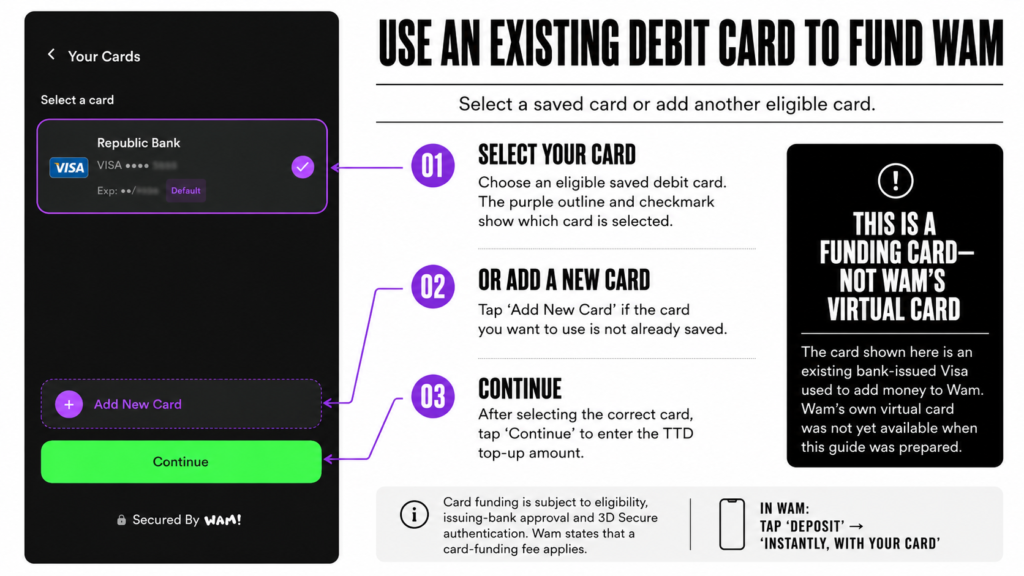
How to add or select a card
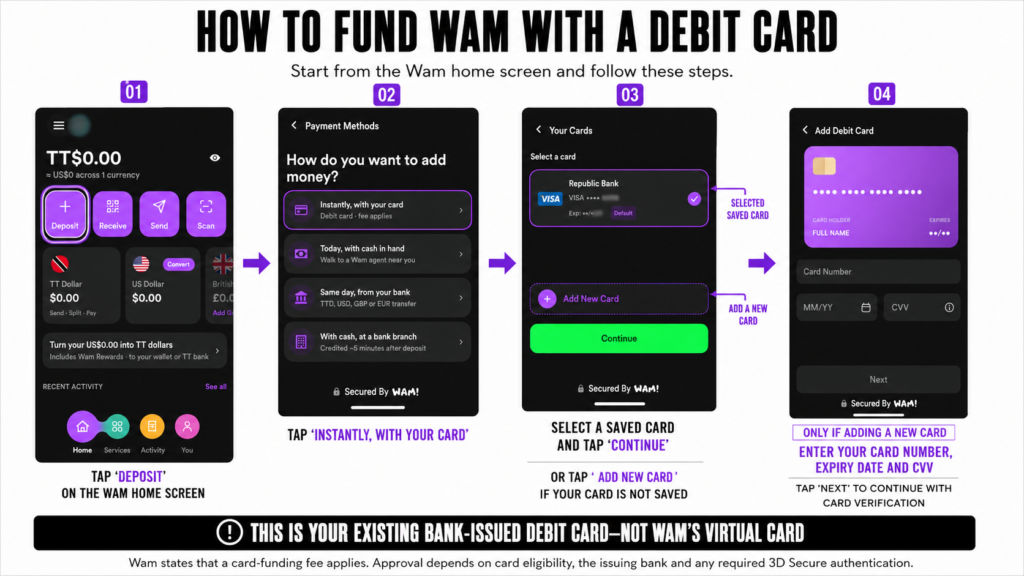
From the Wam funding section:
- Select the option to fund the wallet by card.
- Choose an existing saved card or select Add New Card.
- Enter the requested card information.
- Complete any verification required by the issuing bank.
- Select the card as the funding source.
- Continue to the top-up amount.
Enter the amount you want to add
Enter the amount of TTD you want to place in your Wam wallet.
Before continuing, check:
- The selected card;
- The TTD amount;
- Any fee shown;
- The final amount that will be added to Wam;
- Your available wallet and monthly limits.
For your first card-funded top-up, use a small amount. Confirm that the transaction is approved and that the TTD reaches your Wam wallet before attempting a larger deposit.
Your bank may request 3D Secure authentication
Wam requires supported card transactions to pass the relevant card-security checks. Depending on your bank, you may be asked to complete 3D Secure authentication.
This can involve:
- A one-time password;
- A banking-app approval;
- An SMS or email code;
- Another verification step controlled by the issuing bank.
A card can still be declined even when it has sufficient funds. The issuing bank may reject the transaction because of:
- 3D Secure compatibility;
- Online-purchase restrictions;
- International or merchant controls;
- Fraud-prevention rules;
- Card type;
- A temporary issuer problem.
*Important* During our testing, a Republic Bank Visa worked successfully. FCB cards presented problems at that time. I had to fund through Bank Transfer with FCB, as the FCB debit card was failing the 3D Secure.
If your card is declined:
- Contact your bank and explain the situation and check if your debit card has 3D-Secure enabled
- Try another eligible card if available.
- Use a bank transfer, branch deposit or Wam agent if the card continues to fail.
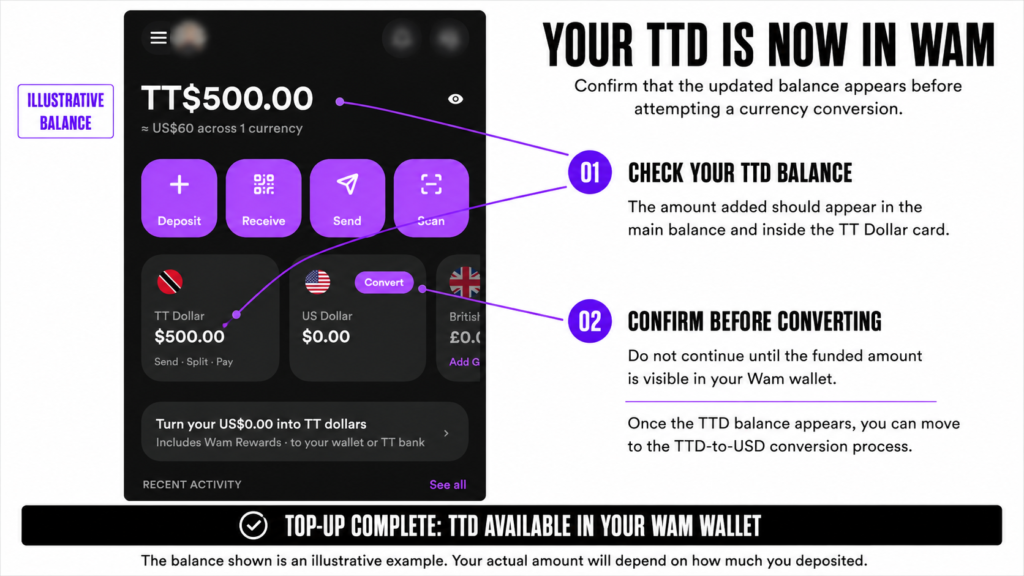
Confirm that the top-up was successful
Once approved, the TTD should appear in your Wam wallet and the transaction should be recorded in your activity.
Do not continue to the currency-conversion section until the funding transaction is marked as successful and the updated balance is visible.
Fund Wam Using a Same-Bank Transfer
Wam also allows customers to fund their wallet by transferring TTD into a Wam bank account.
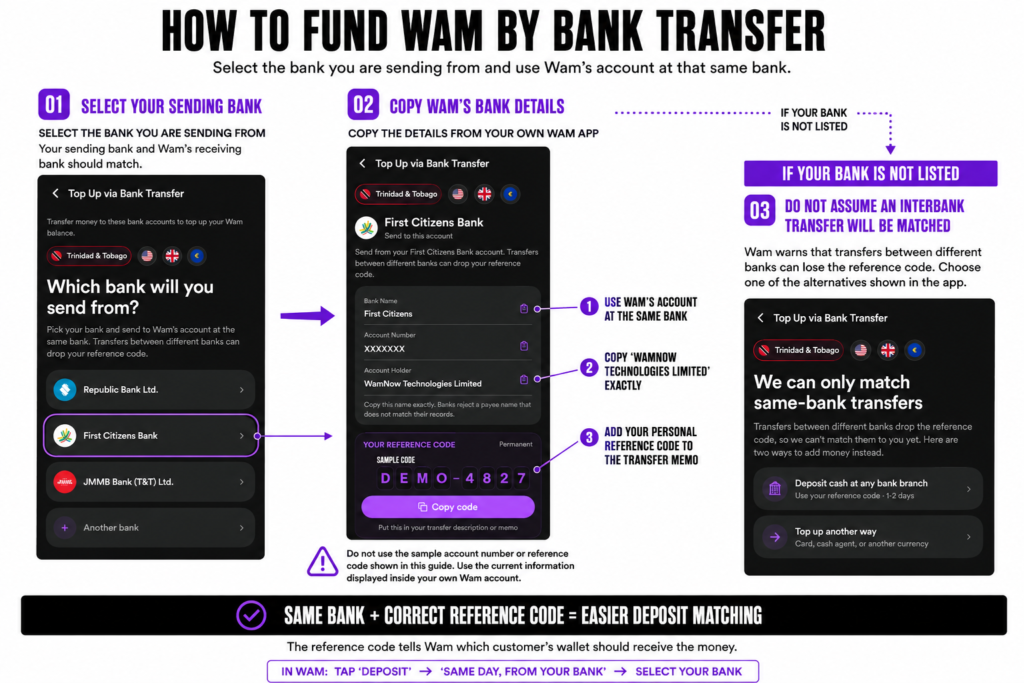
The critical rule is that the bank you send from should match the bank account Wam gives you.
For example:
Republic Bank → Wam’s Republic Bank account
First Citizens Bank → Wam’s First Citizens Bank account
JMMB → Wam’s JMMB account
This matching-bank process helps preserve the personal reference code Wam uses to identify your deposit.
Select the bank you are sending from
Inside Wam:
- Open the TTD funding or Add Money section.
- Select Bank Transfer.
- Select Trinidad and Tobago.
- Choose the bank from which you will send the money.
- Wam will display the corresponding receiving-account details.
Do not select Republic simply because you see a Republic account inside Wam if your money is being sent from another bank. Select the institution that matches your actual sending bank.
Copy Wam’s bank details exactly
After selecting the bank, Wam will display information such as:
- Account holder;
- Bank name;
- Account number;
- Your permanent personal reference code.
Use the account information displayed in your own Wam app. Do not copy bank details from this guide, another person’s screenshot or an old social-media post.
Wam’s beneficiary name must also be entered exactly as shown.
During testing, changing the beneficiary name from an abbreviated “Ltd” to the full “Limited” resolved one bank-account setup problem. Small differences in the beneficiary name can matter.
If Wam displays:
WamNow Technologies Limited
Enter that complete name unless the current instructions inside your app say otherwise.
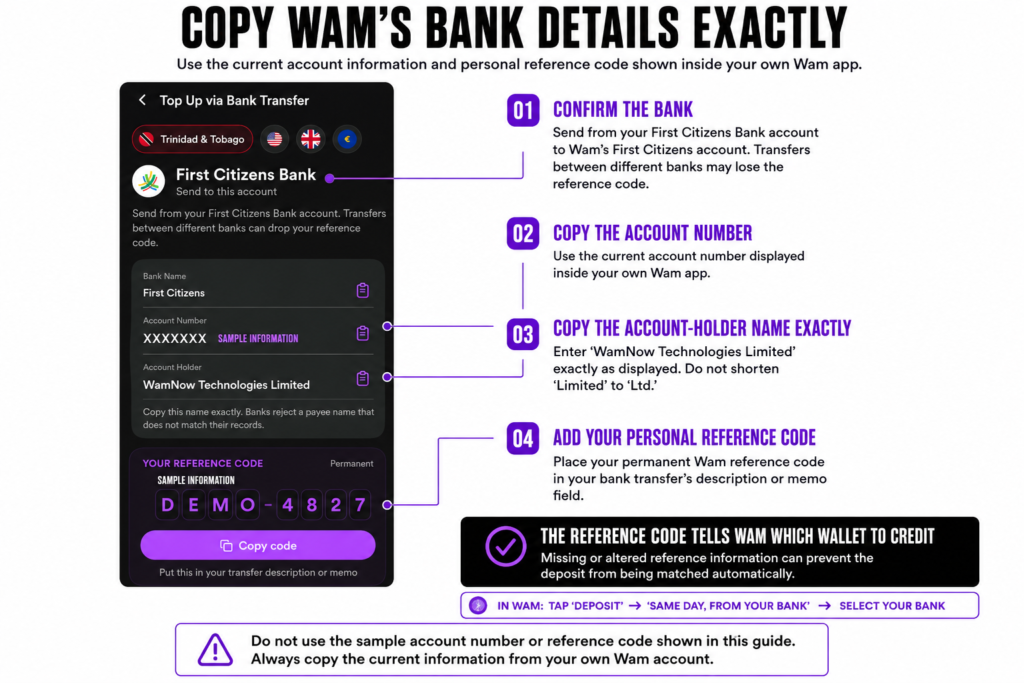
Include your permanent Wam reference code
Your Wam reference code tells Wam which customer should receive the deposit.
Copy it exactly and place it in the transfer description, reference or memo field provided by your bank.
Do not:
- Remove characters;
- Shorten the reference;
- Substitute your name;
- Use another Wam customer’s code;
- Reuse a reference shown in this guide.
Without the correct reference, Wam may be unable to match the deposit automatically to your wallet.
Why same-bank transfers matter
Wam warns that transfers between different banks can drop or change the payment reference.
For example, sending from an unsupported bank into Wam’s Republic account may cause the personal reference code to disappear during interbank processing. Wam could receive the money without knowing which customer’s wallet should be credited.
That is why the recommended route is:
Your Republic account → Wam’s Republic account
Your FCB account → Wam’s FCB account
Your JMMB account → Wam’s JMMB account
If Wam does not provide an account at your bank, use another supported funding method, such as:
- An eligible bank card;
- A cash deposit at a participating branch;
- A Wam agent;
- A Wam-to-Wam transfer.
Do not assume that an ordinary interbank transfer will be matched automatically.
Complete the transfer through your bank
Once you have copied the correct details:
- Log into your bank’s online or mobile-banking service.
- Add Wam as a beneficiary or payee, if necessary.
- Enter Wam’s account-holder name exactly.
- Enter the correct same-bank account number.
- Enter the amount of TTD.
- Include your permanent Wam reference code.
- Review every detail.
- Submit the transfer.
- Save the receipt or confirmation.
Keep the proof of payment until the TTD appears in your Wam wallet.
Confirm that Wam matched the deposit
Processing time can vary according to:
- The bank;
- The time and day;
- The transfer method;
- Whether the reference remained intact;
- Compliance or transaction reviews.
Once the deposit is matched, the TTD should appear in your Wam wallet and the transaction should be visible in the activity history.
If it does not appear within the expected period, gather:
- Transfer receipt;
- Amount;
- Date and time;
- Sending bank;
- Wam reference code;
- Bank transaction number.
Provide those details to Wam support if the payment needs to be traced.
When Will a Same-Day Bank Transfer Appear?
Wam processes matched bank-transfer deposits in batches, typically once during the mid-morning and again later in the evening. Transfers submitted early enough may therefore appear in your Wam wallet on the same day.
Weekend timing can vary. Based on my personal experience:
- An FCB transfer submitted at approximately 4:00 a.m. on a Saturday appeared in my Wam wallet at approximately 11:00 a.m. that Saturday.
- A Republic Bank transfer submitted at approximately 11:00 p.m. on a Friday appeared at approximately 11:00 a.m. on Monday.
These examples show what happened during my transactions—not guaranteed processing times. Your deposit may arrive sooner or later depending on the bank, when the transfer was submitted, whether your reference code was preserved and whether the transaction requires review.
For the smoothest experience, make the transfer during the week and as early in the day as possible. If you are transferring on a Friday night, weekend or public holiday, prepare for the deposit to be credited on the next business day.
Deposit Cash at a Participating Bank Branch
Wam also allows you to deposit cash at participating Republic Bank and First Citizens Bank branches. Deposit the money into the WamNow Technologies Limited account shown in the app, provide your permanent Wam reference code and keep the receipt. Deposits may be credited quickly, although larger amounts can be held for review.
Use a Wam Agent
You can also add or withdraw cash through a verified Wam agent. Use the Agent Map inside the app to find one near you. Availability, requirements and processing times may vary by agent.
These options are useful if card funding or a same-bank transfer is not convenient, but the remainder of this guide will focus on moving TTD already credited to your Wam wallet.
How to Convert TTD Into USD
Once the TTD appears in your Wam wallet, you can convert it into USD directly inside the app. Wam shows the exchange rate and the amount of USD you will receive before you confirm anything.
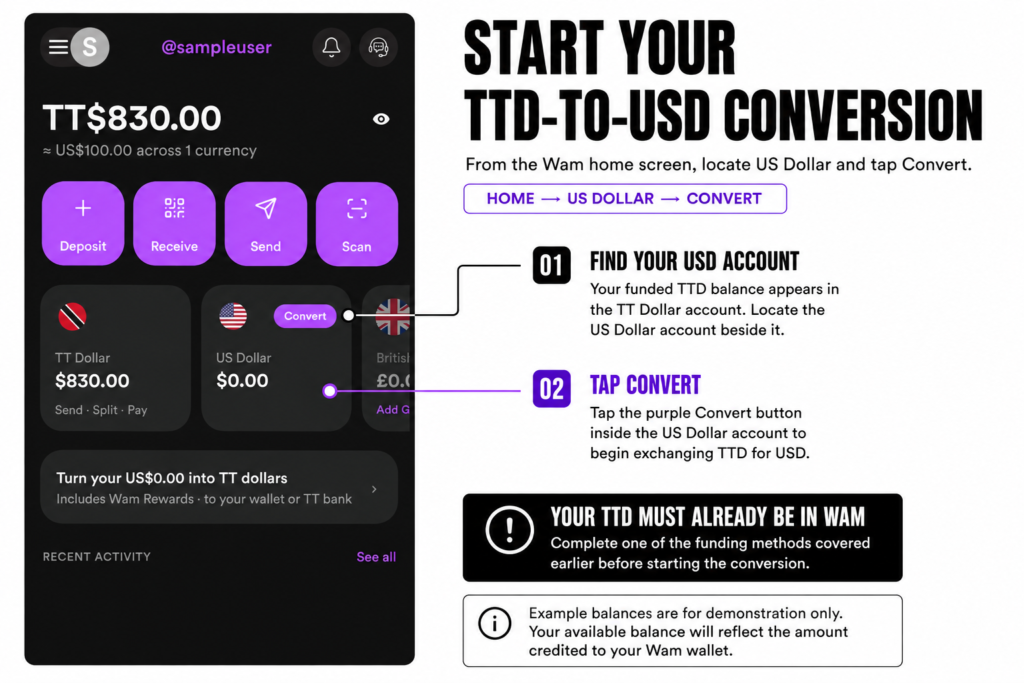
Step 1: Start the conversion
Open the Wam home screen and locate the US Dollar account. Tap Convert.
Step 2: Check the direction of the conversion
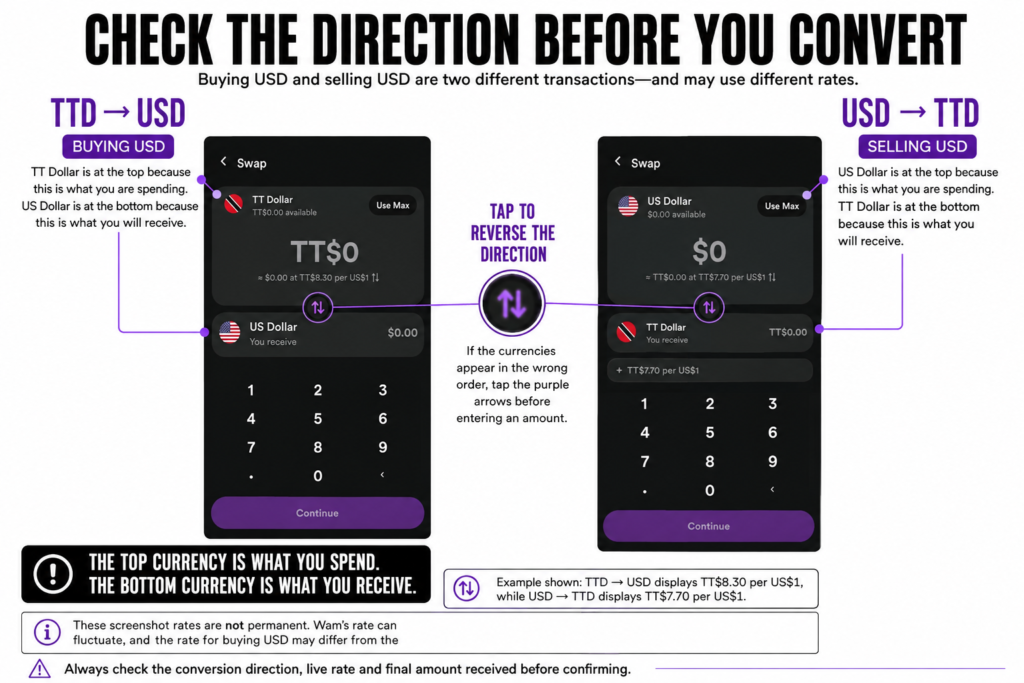
On the Swap screen, confirm that:
- TT Dollar appears at the top as the currency you are spending.
- US Dollar — You receive appears at the bottom.
If the currencies appear in the opposite order, tap the purple arrows between the two accounts to reverse them.
Step 3: Enter the amount of TTD
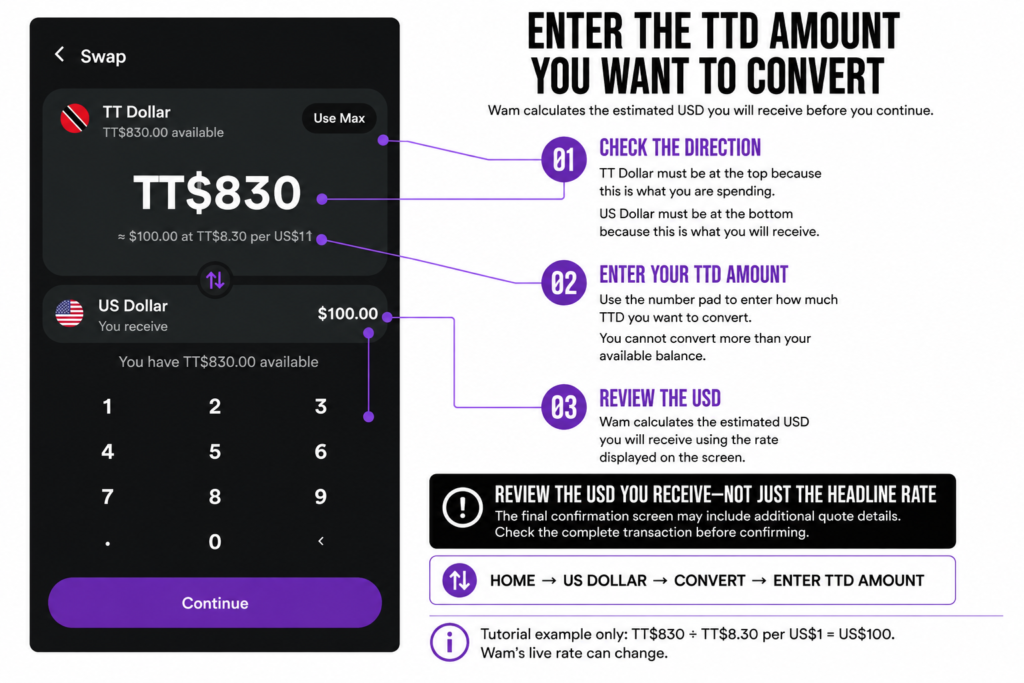
Enter the amount of TTD you want to convert. Wam will calculate the estimated amount of USD you will receive using the rate currently available inside the app.
Start with a small test conversion if this is your first time using the feature. Also check your available TTD balance and remaining monthly transaction limit before proceeding.
Step 4: Review the live exchange rate
Before tapping Continue, review the rate displayed on the Swap screen. This tells you how many Trinidad and Tobago dollars Wam is currently charging for each US dollar.
Wam’s rate fluctuates. The rate shown in this guide is only an example and should never be treated as a permanent or guaranteed rate.
The TTD-to-USD rate may also differ from the USD-to-TTD rate. One is the cost of buying USD with TTD; the other is the rate applied when converting USD back into TTD.
The figure that matters most is the net amount of USD Wam says you will receive.
Step 5: Review the final quote
Tap Continue to see the final conversion details. Before confirming, check:
- The amount of TTD being deducted;
- The amount of USD you will receive;
- The exchange rate;
- Any fee or margin displayed;
- The estimated completion time, if shown;
- Any expiry time attached to the quote.
A quote may only remain available for a limited period. If it expires, return to the previous screen and request a new one.
Do not judge the transaction from the headline rate alone. Review the final amount of USD that will actually arrive in your Wam USD account.
Step 6: Confirm the conversion
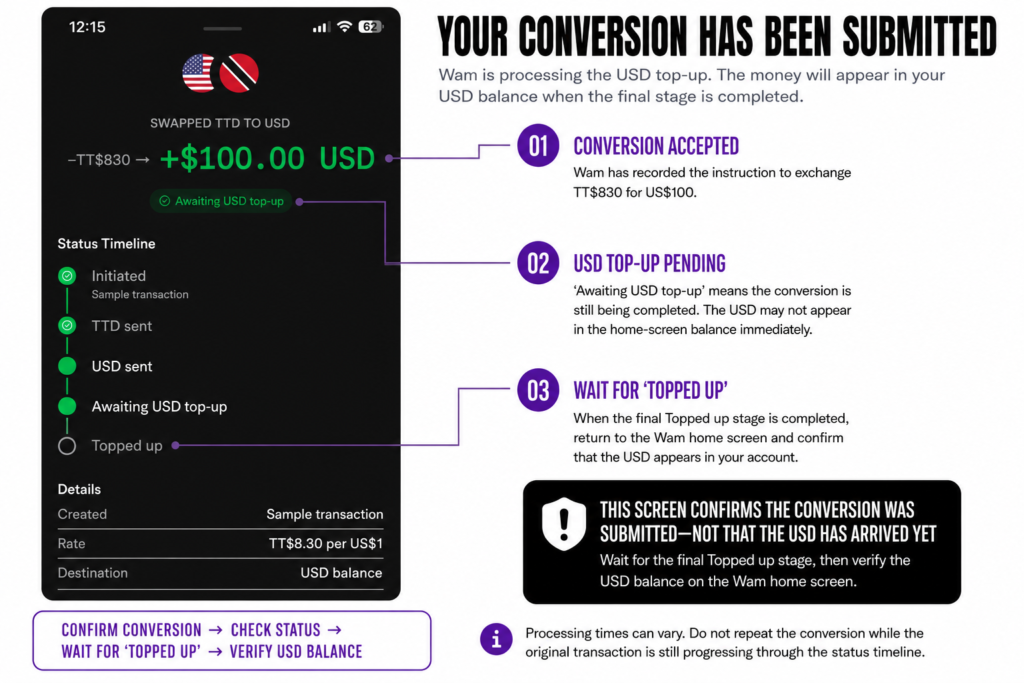
If the details are correct, confirm the conversion. Do not close the app or repeat the transaction while it is being processed.
Wait for Wam to display the successful-conversion confirmation.
Step 7: Confirm that the USD arrived
Return to the home screen or open the US Dollar account. Confirm that the converted USD appears in your balance and transaction history.
Your money is now held as USD inside Wam. From here, you can send it to a compatible US bank account, Wise, Charles Schwab or convert it into USDC and transfer it to Sendana for card spending.
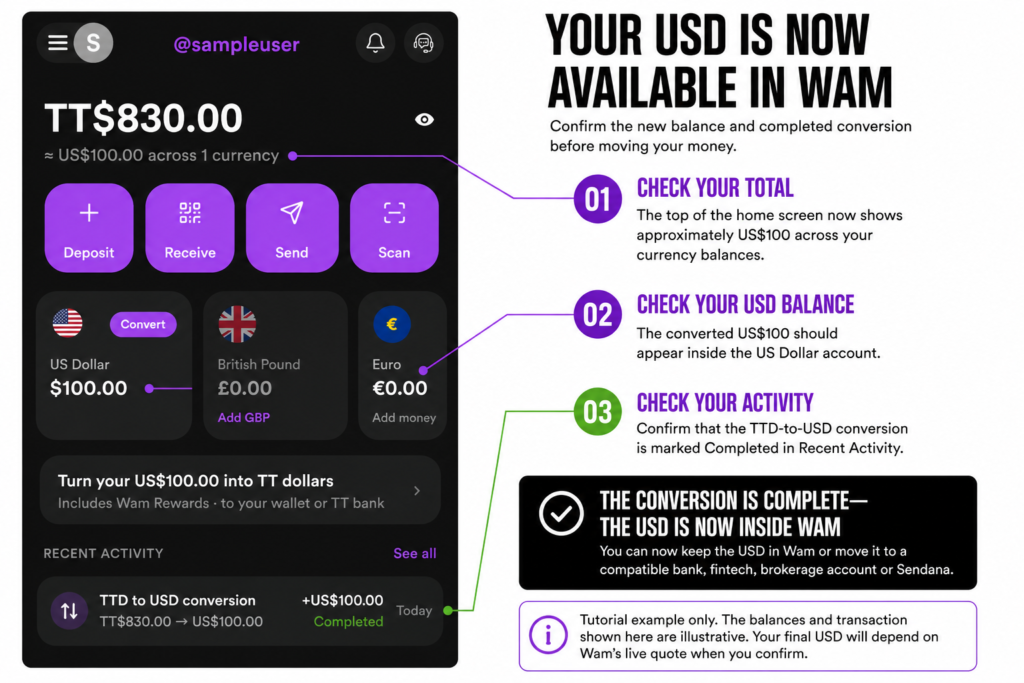
Your USD Is Ready—Now Choose How to Access It
Once the conversion is complete, open your US Dollar account and tap Withdraw. This takes you to Wam’s Move Money screen, where you can see your available USD and choose what to do next.
Wam presents four options:
- Transfer to Wam: Convert USD to TTD inside your Wam wallet.
- Swap to TTD: Convert the USD to TTD and send it to your Wam wallet or a linked Trinidad and Tobago bank account, with Wam Rewards included.
- Send to Bank: Send USD to one of your linked foreign accounts.
- Send Crypto: Send supported cryptocurrency to an external wallet address.
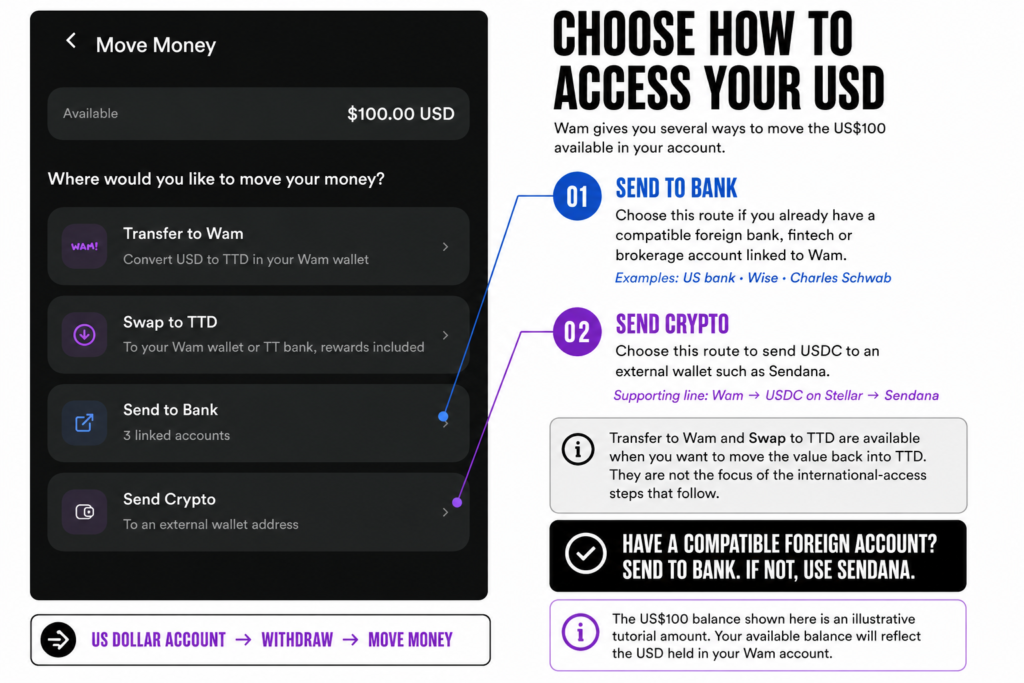
For this guide, we are focusing on the two options that give you practical access to your money outside the Trinidad and Tobago financial system:
Route 1: Send to Bank
Choose Send to Bank if you already have a compatible foreign account linked to Wam. This could include:
- A US bank account;
- A USD account provided by Wise;
- A brokerage account such as Charles Schwab.
The USD is sent directly from Wam to the selected linked account.
Route 2: Send Crypto to Sendana
Choose Send Crypto if you do not have a compatible foreign bank, fintech or brokerage account.
For this route, you will send USDC from Wam to your Sendana wallet using the Stellar network. Once the funds arrive, you can access them through Sendana’s virtual card and add that card to Apple Pay or Google Pay where supported.
Which Route Should You Choose?
If you already have compatible foreign account details, select Send to Bank.
If you do not have a compatible foreign account, select Send Crypto and use Sendana.
DO YOU ALREADY HAVE A COMPATIBLE FOREIGN ACCOUNT?
YES → SEND TO BANK → US BANK, WISE OR CHARLES SCHWAB
NO → SEND CRYPTO → USDC ON STELLAR → SENDANA
Option One: Send USD to a US Bank, Wise or Charles Schwab
If you already have compatible US account details, you can send the USD from Wam directly to that destination.
This route can work with:
- A compatible US bank account;
- US account details supplied by Wise;
- Charles Schwab brokerage deposit details;
- Other compatible personal or business accounts that can receive ACH or wire transfers.
The receiving account does not have to display the same company name you expect. Some fintech and brokerage platforms use an underlying partner bank to receive deposits. Always enter the banking instructions supplied inside the receiving platform.
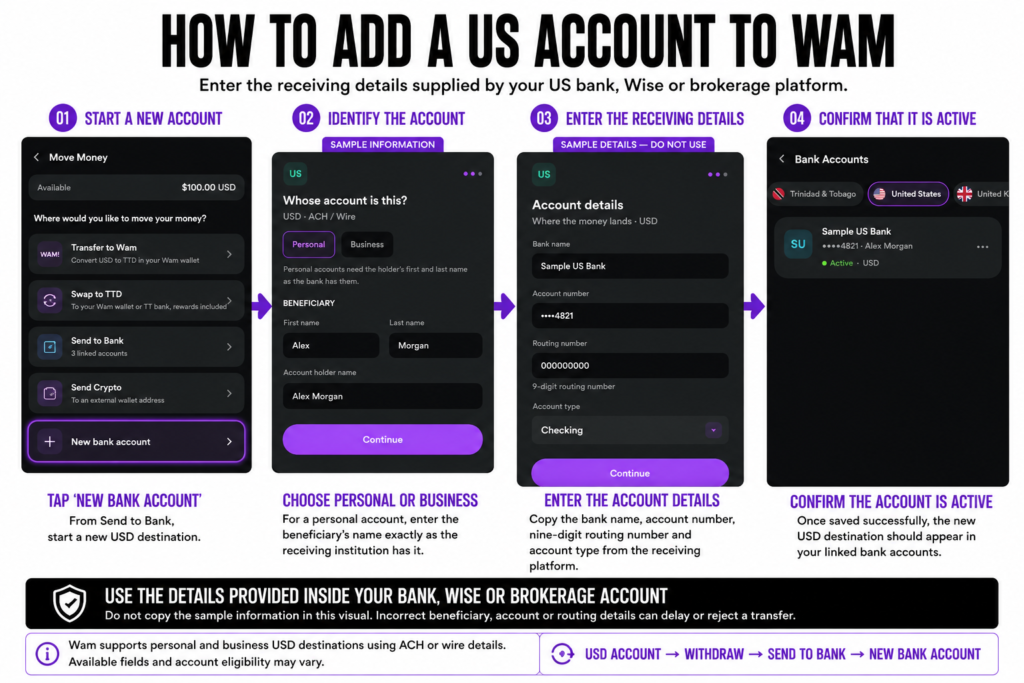
9.1 Add a US Account to Wam
Before sending the USD, add the receiving account to Wam.
Open your Wam profile, select Bank Accounts, choose United States and tap Add Bank Account.
Wam allows you to identify the destination as either:
- Personal; or
- Business.
For a personal destination, Wam may request:
- Beneficiary’s first name;
- Beneficiary’s last name;
- Full account-holder name as it appears on the account;
- Bank name;
- Account number;
- Nine-digit routing number;
- Account type, such as checking.
Enter the information exactly as it appears in the receiving bank, fintech or brokerage platform. Do not rely on details found through a general web search, because the receiving instructions can be specific to your account.
Review every field before saving the account. An incorrect account number, routing number or beneficiary name can delay or reject the transfer.
9.2 Connect Wam to Charles Schwab
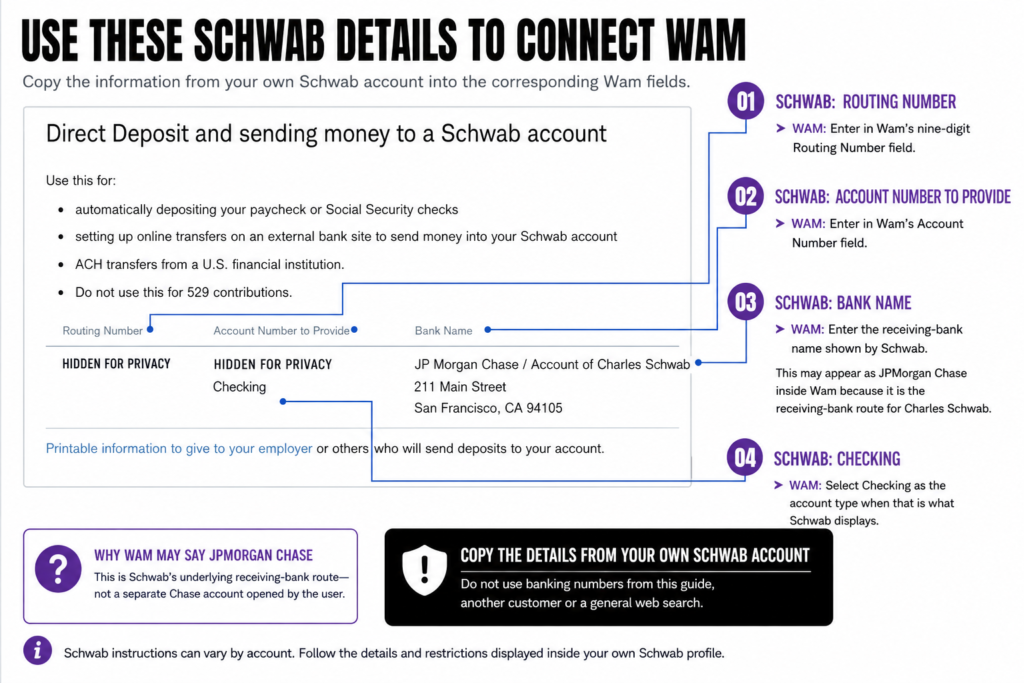
Charles Schwab provides specific banking instructions that can be used to send USD into your brokerage account. You must retrieve these details from inside your own Schwab account before adding the destination to Wam.
Find Your Schwab Deposit Details
- Log into your account at Schwab.com.
- Open Transfer & Pay from the main navigation.
- Select Routing Numbers & Direct Deposit.
- Scroll to Direct Deposit and sending money to a Schwab account.
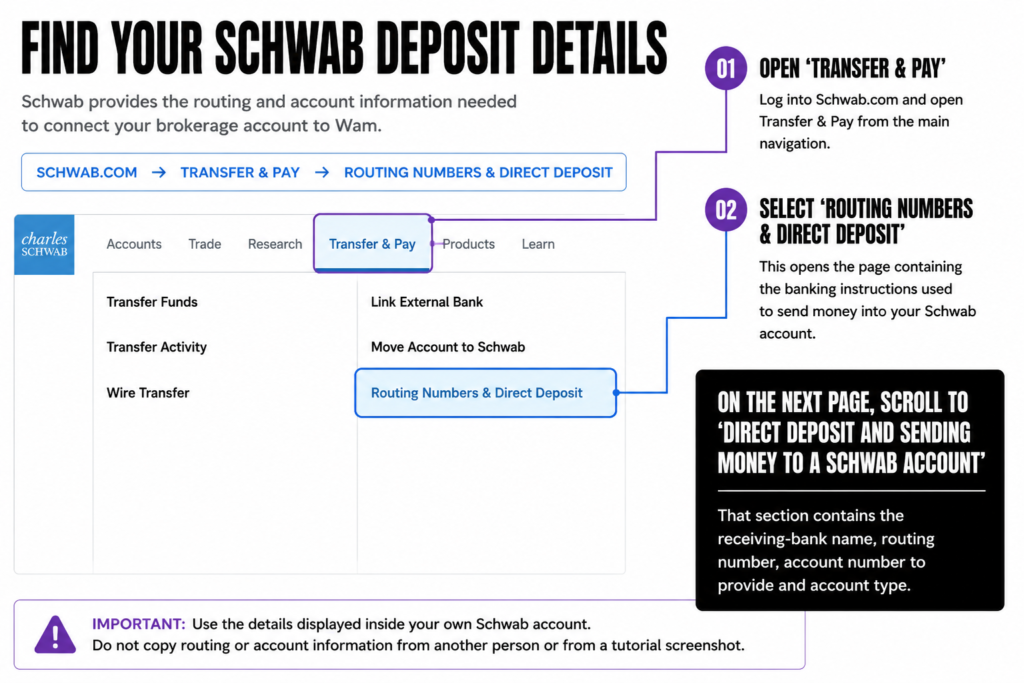
This section displays the banking information Schwab provides for receiving ACH deposits from a US financial institution, including:
- Routing number;
- Account number to provide;
- Account type;
- Receiving-bank name.
Copy the details from your own Schwab account. Do not use the numbers shown in this guide or another person’s Schwab instructions.
Add the Schwab Details to Wam
Return to Wam and begin adding a new US bank account. Enter the information from Schwab into the corresponding Wam fields:
- Bank name: Use the receiving-bank name shown by Schwab;
- Account number: Use Schwab’s Account Number to Provide;
- Routing number: Use the routing number shown in Schwab’s direct-deposit section;
- Account type: Select the account type identified by Schwab;
- Beneficiary and account-holder information: Enter the information associated with your Schwab account exactly as required.
Review the information carefully before saving it.
Why Wam May Display JPMorgan Chase
Schwab’s direct-deposit instructions may use an underlying receiving bank. In my Schwab account, the instructions identify JPMorgan Chase / Account of Charles Schwab as the receiving-bank route.
For that reason, my Charles Schwab destination appears as JPMorgan Chase inside Wam. It is not a separate Chase account that I opened. It is the banking route Schwab provided for sending money into my brokerage account.
Your Schwab instructions may differ. Always use the routing number, account number, account type and receiving-bank name displayed inside your own Schwab account.
Adding Wise
To send USD to Wise, open your Wise account and locate the US account details provided for receiving dollars.
Copy the details directly from Wise into Wam, including the:
- Account-holder name;
- Bank name;
- Account number;
- Routing number;
- Account type.
Use the details for the correct receiving method. Wise may provide different instructions or routing numbers for ACH and wire transfers.
Wise can charge a fee to receive certain wire transfers. An ACH transfer may cost less or carry no incoming fee, depending on the account, route and current Wise pricing.
This means Wam could display no outgoing transfer fee while Wise still deducts an incoming fee. Review the information shown by both Wam and Wise before selecting the transfer method.
Fees, eligibility and receiving instructions can change. Always check the current details displayed inside your own Wise account.
Send the USD
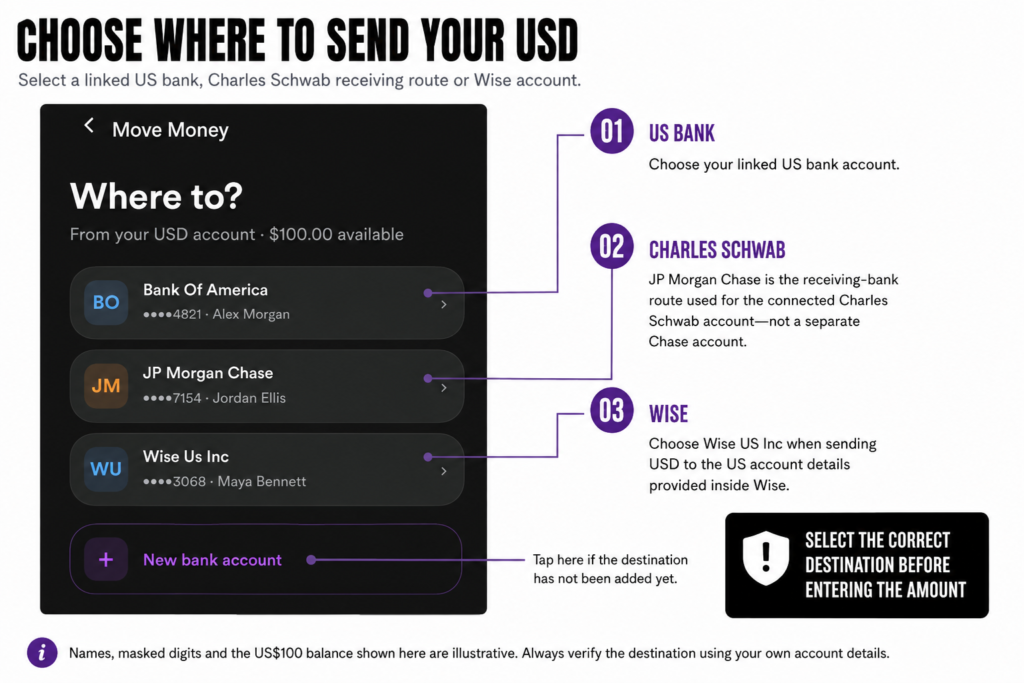
Once the destination has been added:
- Open your US Dollar account in Wam.
- Tap Withdraw.
- Select Send to Bank.
- Choose the linked US bank, Wise or Charles Schwab destination.
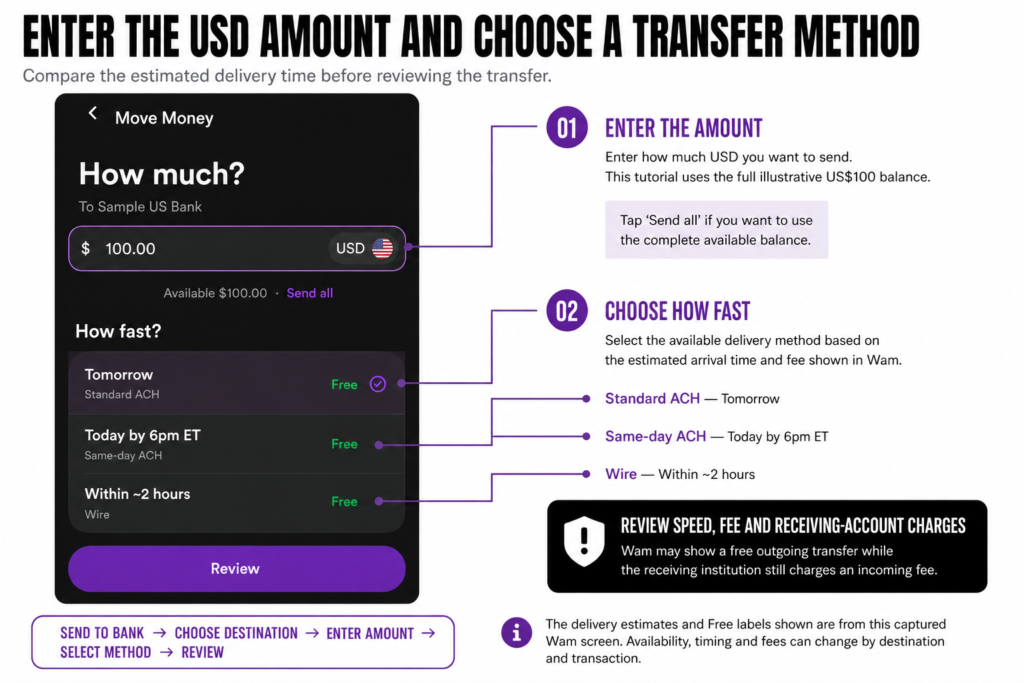
- Enter the amount of USD you want to send.
- Select the available transfer method, such as standard ACH, same-day ACH or wire.
- Review the estimated speed, outgoing fee and net amount.
- Confirm the transfer.
- Monitor the receiving account until the money arrives.
The transfer methods available may depend on the destination. Do not select wire simply because it appears faster. Compare the fee, estimated arrival and amount the recipient is expected to receive.
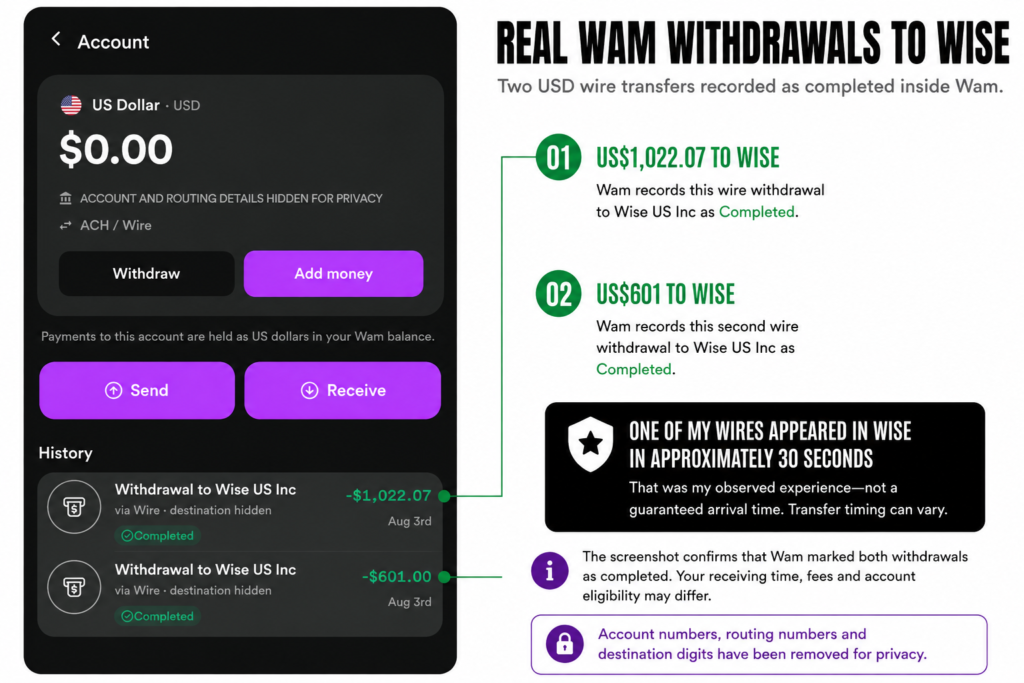
My Experience Sending USD to Wise
I have successfully used Wam to send:
- US$601 to Wise; and
- US$1,022.07 to Wise.
My wire transfers appeared in Wise in approximately 1 -5 min.
That is my observed result—not a guaranteed transfer time. Your transfer may take longer depending on the method selected, the receiving institution, banking hours, compliance checks and whether the account information was entered correctly.
ACH or Wire?
When both methods are offered, compare them before confirming:
| Transfer method | Best considered when | What to check |
|---|---|---|
| Standard ACH | Cost matters more than speed | Estimated arrival, outgoing fee and any receiving fee |
| Same-day ACH | You want faster bank delivery without using a wire | Eligibility, cut-off time and fee |
| Wire | The destination requires wire instructions or speed is the priority | Wam’s fee, the recipient’s incoming-wire fee and the net amount received |
Transfer speed and cost are not guaranteed. The final Wam review screen and the receiving platform’s current fee information should guide your decision.
Option Two: Send USD to Sendana and Spend It
If you do not have Wise, a compatible US bank account or a foreign brokerage account, Sendana provides another way to access and spend the value you converted through Wam.
For this route, you will move the USD value from Wam as USDC, send it over the Stellar network and receive it in your Sendana wallet. Once it arrives, you can access the money through Sendana’s virtual card.
Before continuing, you must already have a registered and verified Sendana account. This guide does not cover Sendana registration or identity verification.
Sendana’s virtual card can be used for online payments and added to Apple Pay or Google Pay where those services and features are supported. This can provide access for:
- Online shopping;
- Software and subscriptions;
- Business expenses;
- Travel spending;
- Everyday international purchases.
At the time this guide was prepared, Wam’s own virtual card was not yet available. Sendana therefore closes the immediate spending gap: Wam handles the TTD funding and conversion, while Sendana provides the virtual card used to spend the money.
The complete route is:
TTD in Wam → USD value → USDC on Stellar → Sendana → Virtual card
You do not need to understand the technical details of stablecoins or blockchain settlement to follow the process. You only need to select USDC, choose Stellar and copy the correct wallet information from your own Sendana account.
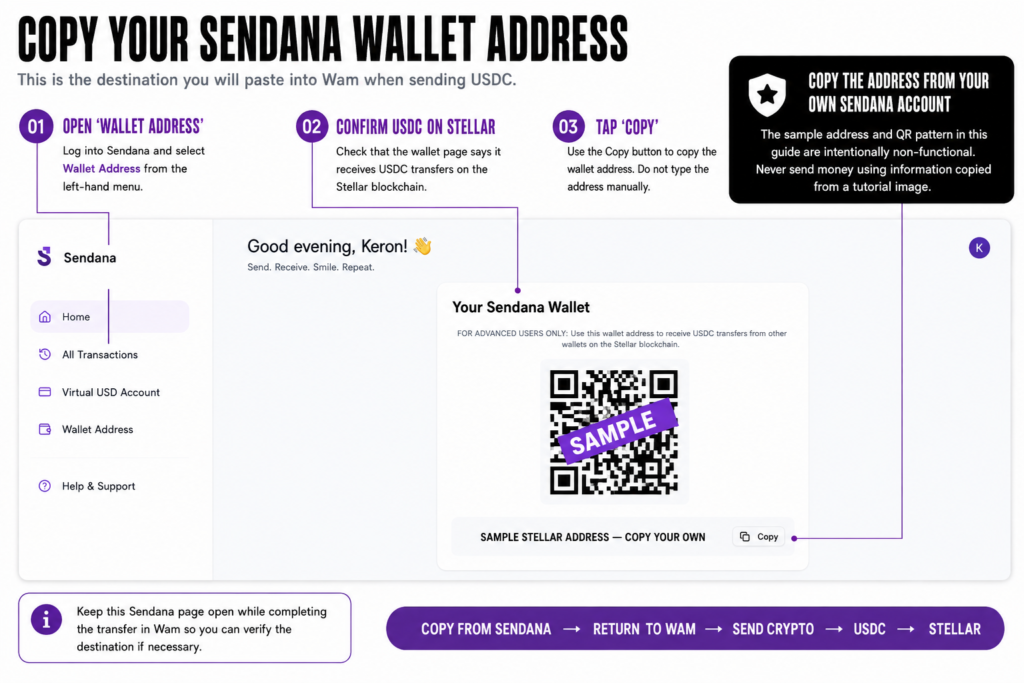
Get Your Sendana Wallet Address
Start inside your verified Sendana account:
- Log into Sendana.
- Open Wallet Address.
- Confirm that the page says the wallet receives USDC on the Stellar blockchain.
- Tap Copy to copy the wallet address.
- Do not type the address manually.
Keep the Sendana page open until the transfer has been submitted from Wam.
Begin the Transfer in Wam
Before trying to send money to Sendana, you must first convert your TTD into USD inside Wam.
The Stellar transfer option is available through Wam’s USD account infrastructure. If you have not completed the TTD-to-USD conversion, you will not see Stellar among the available networks.
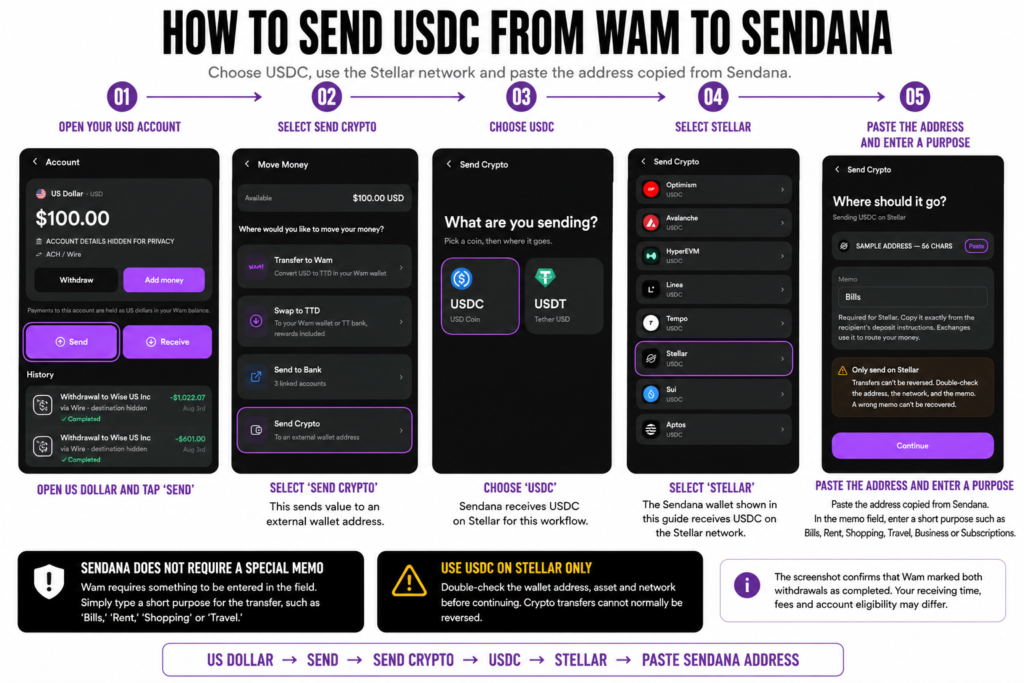
Follow these steps:
- Convert your TTD balance into USD and wait for the money to appear in your Wam US Dollar account.
- Open your US Dollar account.
- Select Send.
- Select Send Crypto.
- Choose USDC.
- Select Stellar as the network.
- Paste the wallet address copied from your Sendana account.
- Enter a short purpose in Wam’s memo field, such as Bills, Rent, Shopping or Travel.
- Review the asset, network, wallet address, amount and applicable fee.
- Confirm and submit the transfer.
Important: Stellar not showing?
Return to your Wam home screen and confirm that you have already converted the TTD into USD and that the money is visible in your US Dollar account. The correct route is:TTD → USD in Wam → USDC on Stellar → Sendana
Do not attempt to begin this transfer directly from your TTD balance.
Before confirming, ensure that:
- The asset is USDC;
- The network is Stellar;
- The wallet address matches the address displayed in Sendana.
Copy and paste the address rather than entering it manually. Crypto transfers normally cannot be reversed if the address or network is incorrect.
Complete the Memo Field
In the memo field, enter a short purpose for the transfer, such as:
- Bills;
- Shopping;
- Travel;
- Rent;
- Business;
- Subscriptions.
You do not need to obtain a special memo from Sendana. Simply enter a brief purpose for the transfer.
Spend the Money Through Sendana
Once the USDC arrives, log into Sendana and confirm that the money appears in your account.
Sendana now provides two ways to spend the funds:
- A virtual card for immediate online and digital-wallet use;
- A physical Visa card for online and in-person purchases.
Get and Use the Sendana Virtual Card
You must have at least US$5 in your Sendana account before you can access the virtual card.
Once eligible:
- Open the virtual-card section inside Sendana.
- Follow the on-screen instructions to activate or make the card available.
- View and securely copy the card details when needed.
- Use the card for eligible online purchases, subscriptions, software, travel expenses and other international transactions.
You can also manage the card from your Sendana account, including freezing it when necessary.
Add the Virtual Card to Google Pay or Apple Pay
The Sendana virtual card is compatible with Google Pay and Apple Pay, but availability differs between the two services.
Google Pay
The Sendana virtual card can be added to Google Pay or Google Wallet by following the normal card-verification process inside the wallet. Once connected, it can be used for eligible online and contactless purchases.
Apple Pay
Apple Pay is available only in supported countries and markets.
If you cannot add the Sendana card to Apple Pay from your current Caribbean location, try completing the setup while physically visiting a supported market, such as the United States. Once the card has been successfully added to Apple Wallet, it should remain available when you return to the Caribbean, subject to Apple, Sendana and card-network support.
Apple Pay and Google Pay availability may still depend on your country, device, account region and Sendana’s current card support.
Order the Sendana Physical Card
Sendana’s physical Visa card is now available.
The card:
- Costs US$10;
- Can be used wherever Visa is accepted, subject to merchant and transaction eligibility;
- Supports online and in-person purchases;
- Can be ordered for international delivery, with Sendana currently advertising shipping to more than 100 countries.
Visit Sendana’s official website or account portal for the current ordering process, supported destinations, delivery fees and estimated shipping times.
With the virtual and physical cards now available, Sendana provides a complete spending route for people who do not have Wise, Charles Schwab or a compatible foreign bank account:
TTD → USD in Wam → USDC on Stellar → Sendana → Virtual or physical Visa card
Conclusion: A Much-Needed Source of Relief
This does not fix every foreign-exchange problem facing Trinidad and Tobago—but it gives us some much-needed relief.
Wam allows us to process up to TT$40,000 per month. At an illustrative rate of TT$8.30 per US$1, that is approximately US$4,819 before any applicable fees. The exact USD amount will change with Wam’s live rate, but this gives us a practical route to convert a meaningful amount of TTD into USD and move that value somewhere it can be used internationally.
For many people, that can be a massive help.
It can help a student cover expenses abroad, allow a traveller to access dependable spending money, help an entrepreneur pay for software and advertising or give someone living overseas a way to reach money held in Trinidad.
The process is now clear:
Fund Wam with TTD → Convert the TTD into USD → Move the USD somewhere you can access and spend it.
If you already have a compatible US bank account, Wise or Charles Schwab, you can send the USD there. If you have none of those, you can send USDC to Sendana and use its virtual card online. Where supported, the Sendana card can also be added to Apple Pay or Google Pay for eligible online and contactless transactions.
The technology behind Wam, Sendana, stablecoins and Bridge is important, but the benefit to us is simple:
We now have another working route to access and use more of our own money.
It is not unlimited, and it does not remove the wider challenges within the Trinidad and Tobago financial system. But having access to as much as TT$40,000 in monthly transaction capacity through Wam can make a meaningful difference for individuals, families and businesses.
Wam is preparing for a larger launch that should provide more information about the company, upcoming features and its own card offering. We do not have to wait for every planned feature, however. The funding, conversion and withdrawal workflows covered in this guide are already working and already providing relief today.
Thanks for this Keron. Much appreciated. I have a Wam account so its good to see option here. Will need to open a Sedana account.